With this integration, you no longer worry about important notifications getting buried in your mailbox. Callveriq directly sends these updates to you via Slack channels.
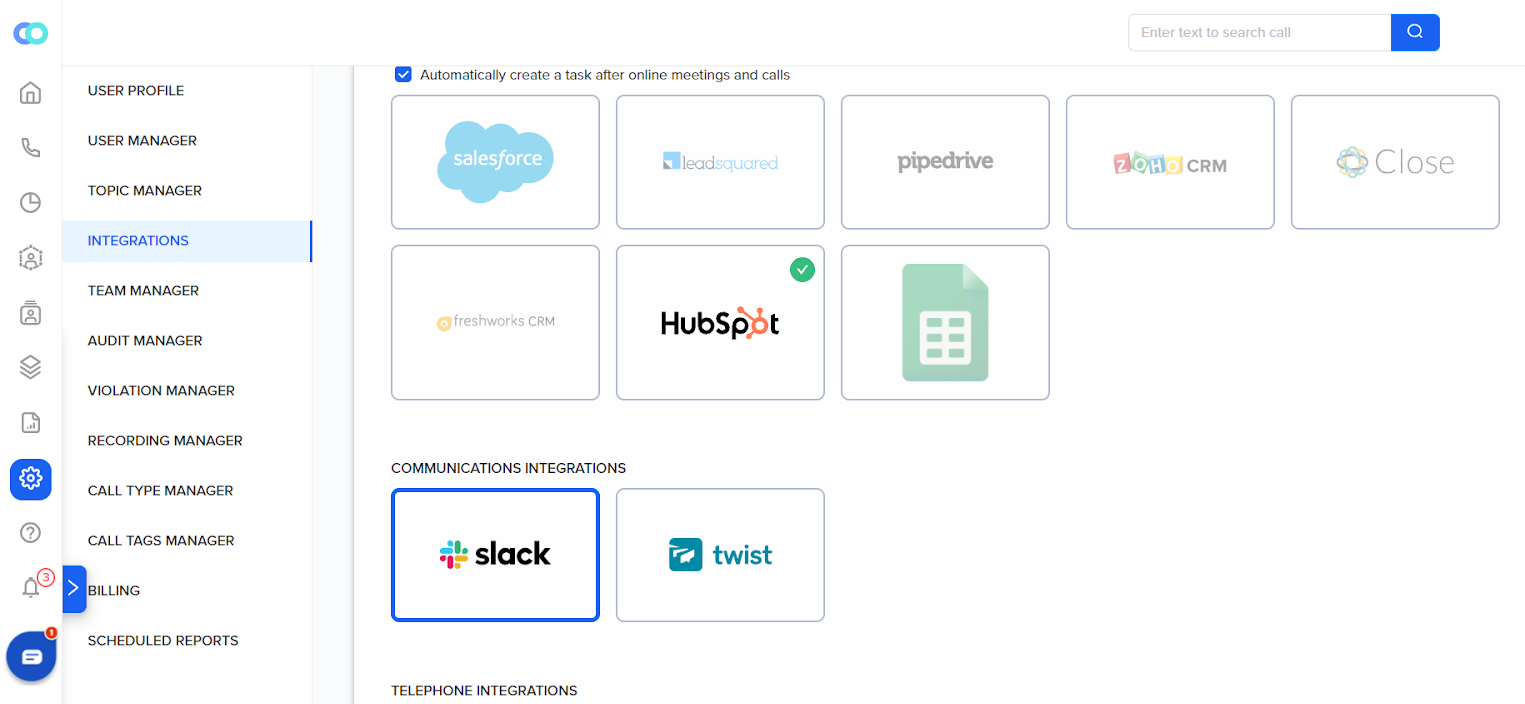
Then go to ‘Integrations’ and look for ‘Communications Integrations’
Click on ‘Slack’. You’ll then be redirected to Slack and asked to choose your Slack workspace.
Sign in to your Slack workspace
Click ‘Allow to give Callveriq access to Slack’ on the permission request page.
Once that is done, you’ll be redirected back to the integration settings page.
That’s all on the Callveriq dashboard—one last step before you’re all set to get notifications.
If you want to receive notifications on Slack, make sure you sign up with the same email address on Callveriq as well as Slack.
Once the setup is ready, Callveriq will send all your call data, including stats, topics discussed, questions asked, action items, etc., directly to Slack. Check the example below.
You will also receive call audit details every time a call audit takes place on the Callveriq dashboard based on your set audit parameters. Callveriq sends the parameters and the audit score directly to your inbox. Check the example below.
If you have any trouble setting this up for your use case, please contact us at ceo@callveriq.com.